


Missing access to NPPES doesn’t usually feel like a crisis until it is. An NPI update needs to be made. CMS access is suddenly blocked. A surveyor asks who has authority over provider records. And the scramble begins to figure out who should have access, how it should have been set up, and why it was never clearly documented in the first place.
Creating an NPPES login is a foundational compliance step that affects how Medicare-certified home health and hospice agencies:
- Manage their National Provider Identifier (NPI)
- Control CMS system access
- Assign legal responsibility within the organization
Done incorrectly, it can delay enrollment actions, create access gaps, or expose agencies to avoidable compliance risk.
*This article was written in consultation with Kelly McCarthy & Mariam Treystman.
At The Home Health Consultant, we work with Medicare-certified agencies every day on enrollment maintenance, access management, and survey-readiness systems. We’re writing this guide to clearly explain how the NPPES login process works, what CMS expects, and how to set it up correctly so agencies can make informed decisions about who should hold authority and why.
Where Do You Start When Creating an NPPES Account?
To begin, go to the NPPES website:
On the right side of the landing page, locate the section titled “Create or Manage an Account.”
Select that option and click OK.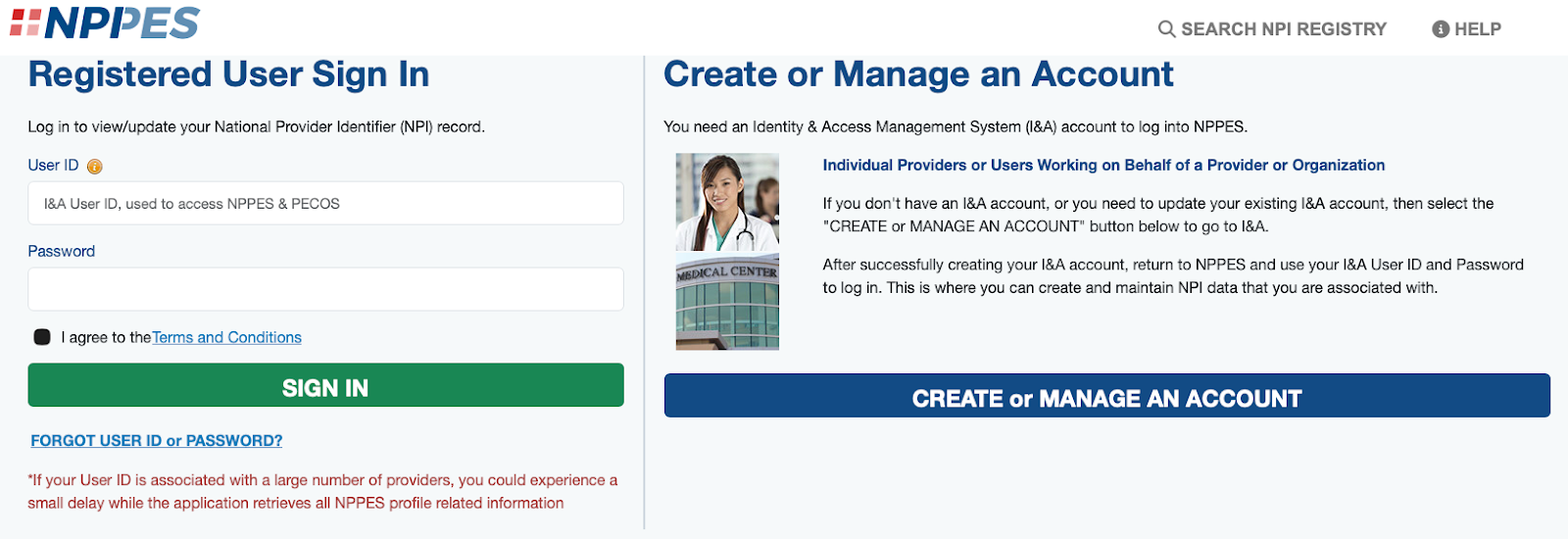
You will be taken to the Terms and Conditions page. Review the agreement and click OK to proceed. You must accept the terms to move forward. Next you will view the CMS Identity & Access Management (I&A) System.
What Is the CMS Identity & Access Management (I&A) System?
NPPES access is managed through CMS’s Identity & Access Management (I&A) System. This system verifies your identity and links you to your organization before you can access NPPES or other CMS applications.
On the right side of the screen, select Create Account Now. This will redirect you to the I&A account creation page.
You’ll be required to:
- Enter your email address
- Re-enter the email address to confirm accuracy
- Complete the CAPTCHA exactly as shown (case sensitive)
Once completed, select Enter to continue.
Pro Tip: On this page, you’ll also see links to a Quick Reference Guide and Frequently Asked Questions in PDF format if you need additional guidance.
What Information Is Required During User Registration?

After submitting your information through the I&A System, you’ll be directed to the User Registration & User Information Step. Here you’ll be asked to enter personal identifying information so CMS can verify your identity.
This includes:
- First and last name
- Business phone number
- Date of birth
- Social Security number
- Address and phone number
After entering this information, click Continue.
If the system standardizes your address, review it carefully and click Continue again if it is correct.
You’ll then be prompted to review all entered information. If everything is accurate, click Accept to complete this portion of registration.
How Do You Request Access for Your Home Health or Hospice Agency?
Once your I&A account is created, the next step is to add your employer and request access.
Log in to the Identity & Access Management System and navigate to the Home tab. Read the section titled “Are you responsible for an Organization?”, which will direct you to the My Profile tab.
On the My Profile tab:
- Scroll to the bottom under Employer Information
- Select Add an Employer
- On the Add Employer Search page, search for your organization
- NPI search is recommended for organizational providers with an existing NPI
- If your employer appears, select it using the radio button
- If not listed, choose Add Employer Not in List and complete all required fields
What Role Should You Select in NPPES?
Once your employer is selected, the page expands so you can choose the role you are requesting. You’ll need to determine what type of user you are, which determines your authority level in NPPES and related CMS systems.
Below you’ll find the different types of authority levels:
Authorized Official (AO)
An Authorized Official is an individual appointed by the organization with the authority to legally bind the agency and conduct business on its behalf. This role also carries responsibility for ensuring compliance with Medicare statutes, regulations, and instructions.
Authorized Officials can:
- Initiate or accept surrogacy connections
- Manage staff access on behalf of the organization
Access Manager (AM)
An Access Manager is delegated by the Authorized Official and also has authority to act on behalf of the organization.
Access Managers can:
- Initiate or accept surrogacy connections
- Manage users and account information
- Support organizational compliance activities
After selecting Authorized Official or Access Manager, the page will expand with additional required fields. Authorized Officials must attest to their role. Access Managers must provide Authorized Official information.
What Happens After You Submit the Employer Request?

After completing the Add Employer – Confirmation and Review page and selecting Done, a confirmation email will be sent.
Approval timelines depend on your organization’s status:
- If you are already listed as an Authorized Official or Access Manager for a Medicare-enrolled provider, approval may be immediate
- If the organization is not enrolled or you are not already associated, CMS may require additional verification
You can track your employer request status at the bottom of the My Profile tab.
What Verification Documents May Be Required?
CMS may request additional verification documents depending on the type of access you requested.
If You Are Requesting Authorized Official Access
You must submit documentation to the CMS External Users Services (EUS) Help Desk, including a copy of the IRS CP 575 or an approved alternate
Pro Tip: Write your I&A Tracking ID on the submitted document to expedite processing
You will receive an email once the request is processed.
If You Are Requesting Access Manager Access
Before your registration takes effect, Option A or Option B must be completed:
Option A:
Print, sign, and submit the Access Manager Certification, along with the organization’s IRS CP 575 or approved alternate.
Option B:
Have an existing Authorized Official log in and approve your request directly within the system.
When Can You Access NPPES After Approval?
Once your Authorized Official or Access Manager role is approved, allow up to two hours for system synchronization before attempting to access NPPES or related CMS systems.
This delay is normal and required for CMS systems to update access permissions.
Why Does Proper NPPES Access Matter for Medicare-Certified Agencies?
NPPES access is foundational. It impacts how your agency:
- Maintains accurate NPI records
- Assigns and manages CMS system access
- Supports enrollment, updates, and compliance activities
Errors during setup can cause delays that ripple into other CMS systems, creating avoidable operational and compliance risks.
If you want help ensuring your agency’s administrative systems are set up correctly and maintained long-term, our team works directly with Medicare-certified home health and hospice agencies to build compliant, sustainable infrastructure that holds up under scrutiny.
Need help preventing deficiencies and improving operational compliance?
That’s exactly what we help agencies solve. Learn more by reading about our proven process below.

*Disclaimer: The content provided in this article is not intended to be, nor should it be construed as, legal, financial, or professional advice. No consultant-client relationship is established by engaging with this content. You should seek the advice of a qualified attorney, financial advisor, or other professional regarding any legal or business matters. The consultant assumes no liability for any actions taken based on the information provided.
Topics:

















.png?width=850&height=400&name=Rando%20(6).png)